

How to Create a Transparent Header Menu in Showit Tutorial
Love the look of websites with a floating navigation bar over a full-screen image or video? If you’ve been curious about how to create a transparent header menu in Showit, this step-by-step tutorial is exactly what you need.
Designing a Transparent Navigation Menu in Showit
STEP 1: SET UP YOUR HEADER MENU CANVAS
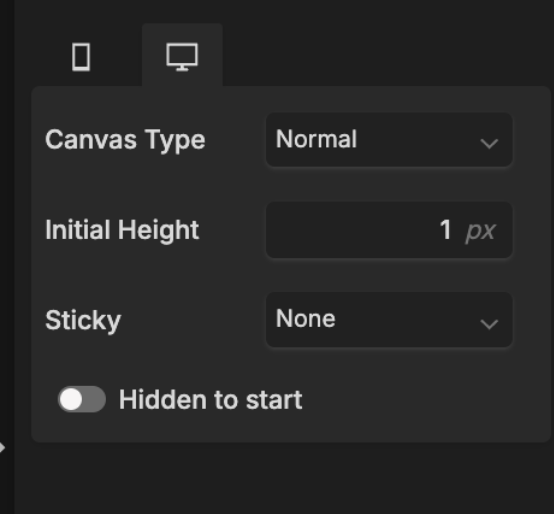
Start by going to your header section in Showit. Here’s the key trick that makes your transparent header menu work: Set your header canvas height to just 1px.
This tiny canvas height means you’re essentially designing over an empty element. Your header content will still be visible and functional, but it won’t take up any actual space on the page.
STEP 2: DESIGN YOUR HEADER MENU CONTENT
Now it’s time to design your header. Add your logo, navigation links, and any other elements you’d like to include. Since this is a transparent header, be sure your logo and text have enough contrast to remain visible over your background.
You might consider adding a subtle overlay to your hero image or adjusting your text colors to improve readability. If the background feels too busy, it may be worth swapping it out for something simpler to keep your header clean and legible.
STEP 3: POSITION YOUR HEADER MENU
When you place your header at the top of the canvas and stack another section underneath, like a hero image or video, it naturally overlays the content below, creating that sleek, floating effect.
STEP 4: ADJUST THE STACKING ORDER
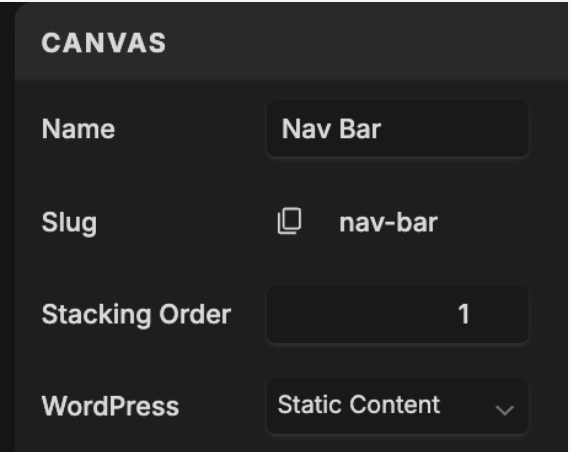
If your header isn’t displaying correctly, it’s likely a layering issue. In Showit, check the stacking order. Just select your header canvas and increase its stacking number in the right panel until it’s fully visible above your hero section.
RECAP
Transparent headers? Total game-changer. They add just the right touch of cool without trying too hard. If you’re playing around with your design and need a hand (or just want someone to do the techy stuff for you), I’m here for it. And if you’re vibing with this look and want to build your site on Showit — let’s make it happen.


